
Online Stopwatch
Online stopwatch with elapsed time, lap splits, pause and resume, and CSV results export.
Stopwatch
Space to start or pause.
Keep this tab open. Mobile and background alarms depend on your browser and device. After a reload, saved sessions return paused.
Laps & splits
Your laps will appear here. Press L or tap Lap while running.
| Lap | Split | Total |
|---|
How it works and advice
How the Online Stopwatch works
The online stopwatch measures elapsed time by counting up. Press Start to begin, Pause to freeze the reading and Resume to continue the same run. Paused time is excluded. Reset clears the elapsed time and lap list for a fresh measurement.
Record a lap at each checkpoint. Split shows the time since the previous lap, while Total shows elapsed time from the start. You can tap Lap while running or press L when keyboard focus is outside a control. The display shows tenths of a second.
Export CSV downloads the lap number, split seconds and cumulative elapsed seconds for review in a spreadsheet. The stopwatch and laps are saved in this browser; after a reload, the session returns paused. For a deadline that counts down to zero, choose Simple Timer instead.
Set up and run the timer
- Start at the beginning of the measurement. The display counts up in tenths of a second.
- Lap records a checkpoint without stopping. Pause holds the reading; Resume excludes the pause from elapsed time.
- Export CSV saves lap totals and splits. Export in settings saves a JSON configuration instead.
- Reset clears time and laps. Moving the timeline pauses and removes laps later than the corrected position.
Controls at a glance
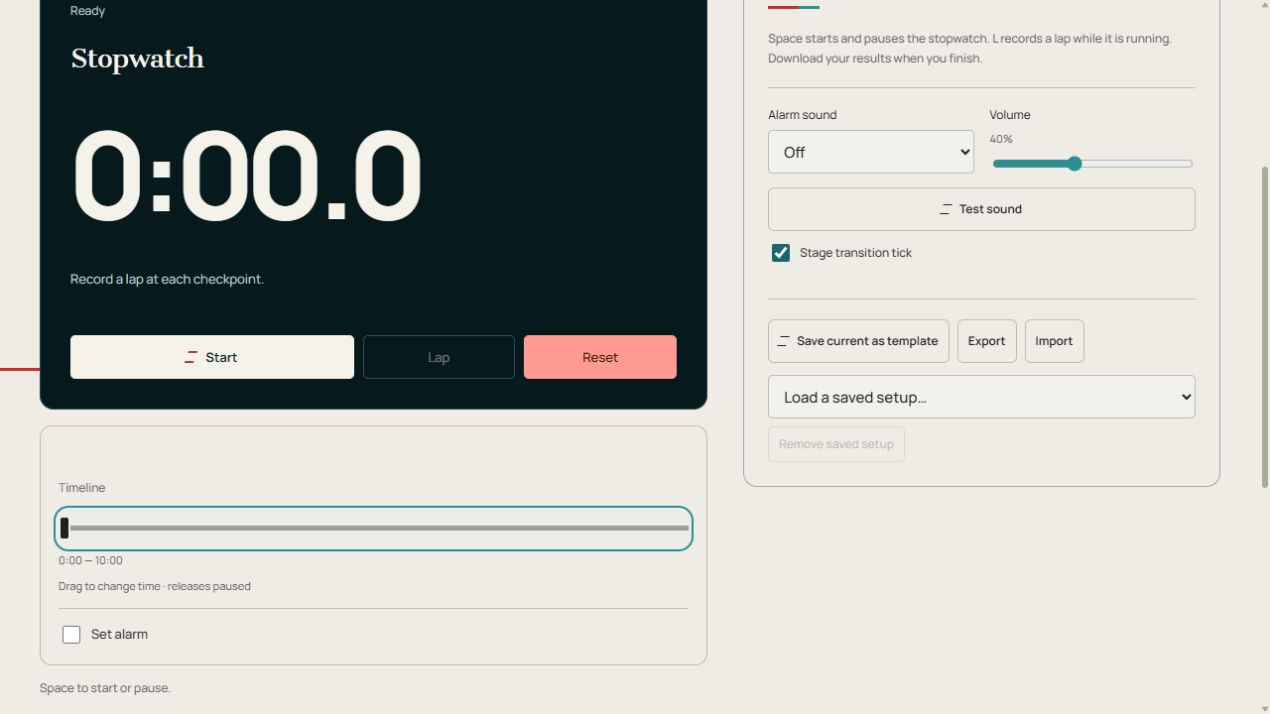
- Start / Pause — Run, hold or resume this clock.
- Lap — Record a split while running.
- Reset — Return to the configured beginning.
- Test sound — Check the selected sound and device volume.
- Start / Pause / Resume
- Begins, holds or continues the same measurement without counting paused time.
- Lap / Export CSV
- Lap records a checkpoint while running. Export CSV downloads split and cumulative times.
- Reset
- Clears the elapsed reading and lap list for a new measurement.
- Timeline
- Drag to correct elapsed time, then Resume. The in-clock strip displays progress.
- Set alarm / Alarm at / Test alarm
- Enable an extra bell, drag Alarm at to an elapsed-time position and test it. This bell has its own switch, separate from stage sounds and Stage transition tick. Keep the tab open.
- Fullscreen
- Enlarges the dark clock. Leave with the exit control or Escape where supported. Phone and browser support varies.
Settings and saved setups
- Alarm sound / Volume / Test sound
- Choose gong, bell, beep or Off, set volume and test without starting the clock.
- Save current as template / Load a saved setup…
- Enter a name and choose Save setup; Cancel closes the naming dialog. Choose a saved name to load that configuration. Reusing a name replaces that template. Templates store settings, not timing reports.
- Remove saved setup
- Removes the selected named configuration, not the timer page.
- Export / Import
- Export downloads a JSON setup; Import loads a setup exported from the same timer type. Export CSV, where present, downloads results instead.
- Outlined star / Make start timer
- The star adds this page to the favorites row on the main page and other timers. Press it again to remove it. Make start timer chooses the timer that opens from the home page.
- Sign in with Google / Sign out / My timers / Load synced settings
- The account control signs in or out. My timers lists saved custom timers. Load synced settings loads received account changes; pause a running timer first.
- Stage transition tick
- Turns the short handoff click on or off separately from stage alarms.
- Keyboard shortcuts
- Space starts or pauses; L records a lap while running. Shortcuts are inactive while focus is inside a control.
Example: compare three attempts
Start once and Lap at each finish. Cumulative totals of 10, 22 and 31 seconds give splits of 10, 12 and 9 seconds. Pause at the finish and Export CSV before Reset clears the measurements.
Other ways to use it
- Presentation checkpoints
- Repeated task measurements
Practical advice
- Decide what counts as the start and finish before measuring a task.
- Use laps for repeated attempts or checkpoints instead of resetting between every segment.
- Compare split times when intervals are comparable; use cumulative totals to understand the whole run.
- Export the lap list before clearing browser data or starting a run that replaces it.
- Treat browser timing as a practical everyday tool rather than certified precision measurement.
Saving, sound and browser limits
Settings, named templates, custom timers and favorites save in this browser. Sign in with Google at the top right to sync saved setups. If Load synced settings appears, pause before loading. Saved-setup sync does not synchronize live clocks across devices.
Keep this tab open and test sound on the device you will use. Phones and browsers can delay alarms in background tabs or while locked. Reload restores saved clocks paused; closing the page does not keep a live alarm running.