
Classroom Timer
Online classroom activity timer for lessons, group work and quiet reading, with optional visual-only progress.
Classroom
Space to start or pause.
Keep this tab open. Mobile and background alarms depend on your browser and device. After a reload, saved sessions return paused.
How it works and advice
How the Classroom Timer works
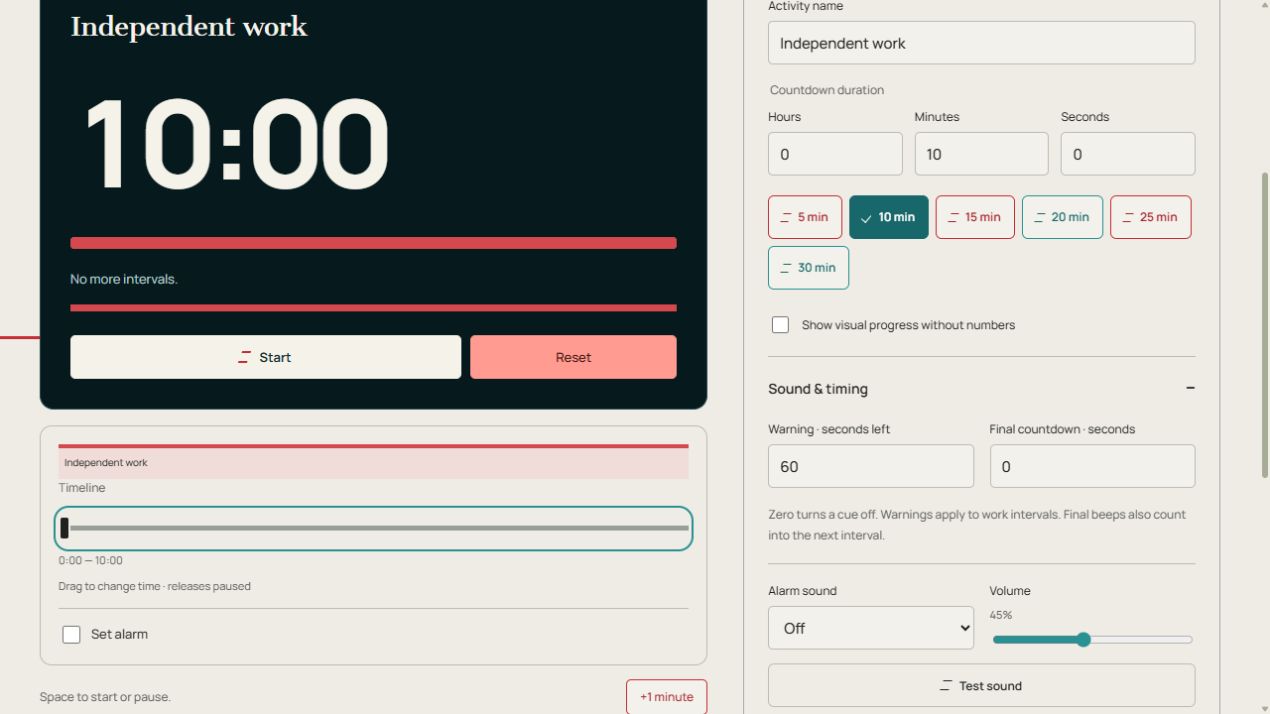
The Classroom Timer is a single activity countdown for a lesson, independent work, group discussion or a transition. Enter an activity name and choose hours, minutes and seconds, or use a quick duration. The large clock and shrinking progress bar show the time remaining.
Press Start when the activity begins, Pause when the room needs an interruption and add one minute if you want to extend the activity. Fullscreen makes the display easier to show to the class where the browser supports it. Show visual progress without numbers hides the digits while keeping the progress bar.
Classroom mode starts with sound off. You can choose an alarm, volume, work-warning threshold and final countdown if the activity needs an audible cue. For a lesson with several timed speakers or agenda items, use the separate Meeting Timer and build an agenda.
Set up and run the timer
- Review the preset and timing fields. Countdown has separate hours, minutes and seconds; interval work/rest uses seconds, while Pomodoro focus/break uses minutes.
- Tap a duration number for the circular dial. Turn clockwise to add time or counterclockwise to subtract, then Apply. You can also type a number. Close discards the dial draft.
- Choose Alarm sound and Volume, then Test sound. Warning is seconds remaining; Final countdown adds beeps. Zero disables a cue. Stage transition tick and Set alarm have separate switches.
- Start begins, Pause holds and Resume continues the run. Reset restores the configured beginning and unlocks duration editing.
- Drag the separate timeline below the clock to correct the position. It pauses on release; check the slot and time before resuming.
Controls at a glance
- Start / Pause — Run, hold or resume this clock.
- Reset — Return to the configured beginning.
- Start / Pause / Resume / Start again
- Begins, holds or continues the current run. Start again repeats the completed countdown plan.
- +1 minute
- Extends the active interval without adding a new one.
- Reset
- Stops and returns to the configured beginning. Reset before changing durations.
- Timeline
- Drag to correct elapsed time, then Resume. The in-clock strip displays progress.
- Set alarm / Alarm at / Test alarm
- Enable an extra bell, drag Alarm at to an elapsed-time position and test it. This bell has its own switch, separate from stage sounds and Stage transition tick. Keep the tab open.
- Fullscreen
- Enlarges the dark clock. Leave with the exit control or Escape where supported. Phone and browser support varies.
Settings and saved setups
- Alarm sound / Volume / Test sound
- Choose gong, bell, beep or Off, set volume and test without starting the clock.
- Save current as template / Load a saved setup…
- Enter a name and choose Save setup; Cancel closes the naming dialog. Choose a saved name to load that configuration. Reusing a name replaces that template. Templates store settings, not timing reports.
- Remove saved setup
- Removes the selected named configuration, not the timer page.
- Export / Import
- Export downloads a JSON setup; Import loads a setup exported from the same timer type. Export CSV, where present, downloads results instead.
- Outlined star / Make start timer
- The star adds this page to the favorites row on the main page and other timers. Press it again to remove it. Make start timer chooses the timer that opens from the home page.
- Sign in with Google / Sign out / My timers / Load synced settings
- The account control signs in or out. My timers lists saved custom timers. Load synced settings loads received account changes; pause a running timer first.
- Keyboard shortcuts
- Space starts or pauses. Shortcuts are inactive while focus is inside a control.
- Warning / Final countdown
- Warning is seconds remaining in a work slot; Final countdown is the last few beeps. Zero disables each cue.
- Stage transition tick
- Turns the short handoff click on or off separately from stage alarms.
- Activity name / Show visual progress without numbers
- Sets the task name, or hides digits while retaining the progress bar.
Example: a ten-minute pair activity
Name the activity Discuss in pairs and set ten minutes. Explain the finish cue, then Start. +1 minute gives a short extension. Show visual progress without numbers keeps the progress bar while hiding digits.
Other ways to use it
- Quiet reading with sound off
- Timed presentations
Practical advice
- Name the activity after a clear action, such as Read the passage or Discuss in pairs.
- Explain the finish cue and what students should do next before starting.
- Keep sound off for quiet reading, or test a gentle cue before showing the display.
- Use the visual-only option when exact numbers would distract from the task.
- Leave time outside the activity countdown for instructions and collecting responses.
Saving, sound and browser limits
Settings, named templates, custom timers and favorites save in this browser. Sign in with Google at the top right to sync saved setups. If Load synced settings appears, pause before loading. Saved-setup sync does not synchronize live clocks across devices.
Keep this tab open and test sound on the device you will use. Phones and browsers can delay alarms in background tabs or while locked. Reload restores saved clocks paused; closing the page does not keep a live alarm running.