New Year Countdown
New Year countdown to January 1 at midnight in your chosen time zone, with an optional alarm and fullscreen display.
New Year
Your chosen midnight, wherever you are.
Keep this tab open. Mobile and background alarms depend on your browser and device. The countdown follows your device clock.
How it works and advice
How the New Year Countdown works
The New Year Countdown shows days, hours, minutes and seconds until January 1 at midnight in your selected time zone. It starts with your browser’s time zone and also offers UTC, New York, Los Angeles, London, Paris, Dubai, Tokyo and Sydney.
Choose the place whose celebration you want to follow and read the target date and time zone beneath the countdown. The target is local midnight in that zone, not midnight in every viewer’s location. A change of zone can therefore change both the remaining time and which year is next.
The countdown follows your device clock. Enable midnight alarm unlocks sound for the open tab; choose an audible sound and volume first. At the target, the page shows a New Year greeting. You can then choose to count down to the following year.
Set up and run the timer
- Choose Celebrate midnight in… and check the target year and zone. The countdown runs immediately from the device clock.
- Choose the alarm and Volume, Test sound and Enable midnight alarm for this open tab.
- Fullscreen enlarges the display. The target-adjustment timeline shifts the deadline around midnight; move it only when you intend to change the target.
Controls at a glance
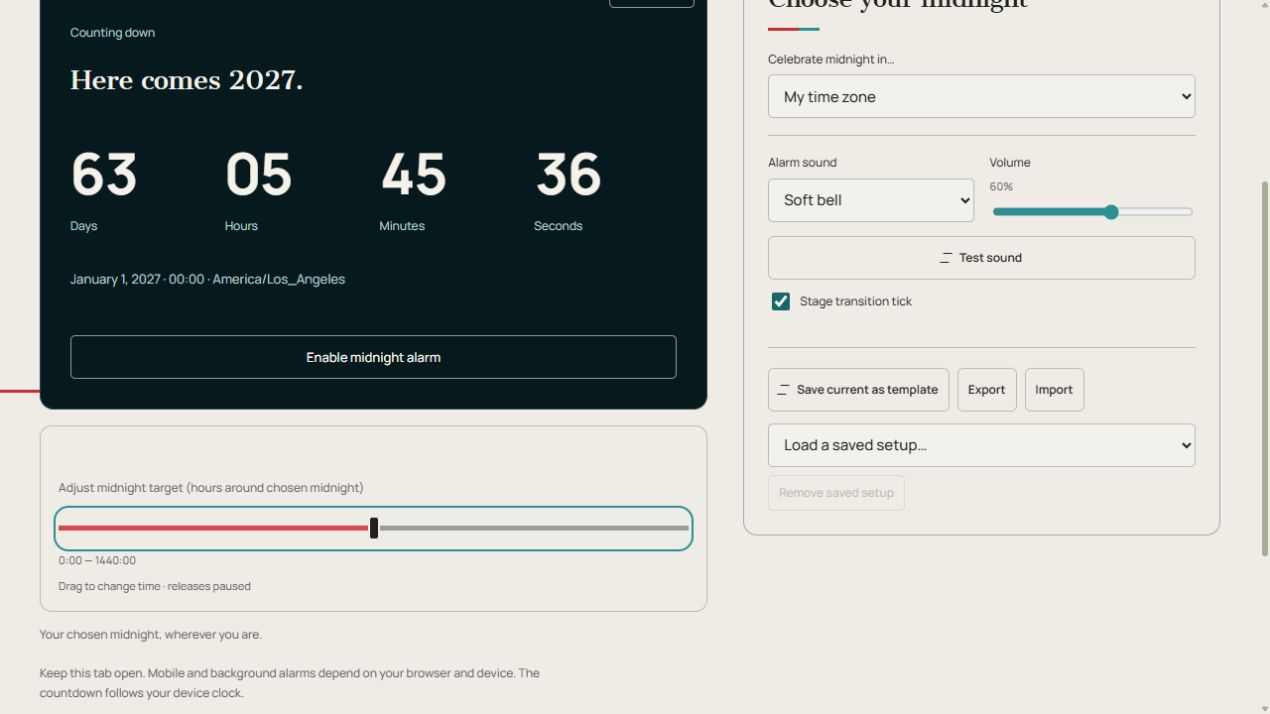
- Enable midnight alarm — Unlock the alarm for this open tab.
- Test sound — Check the selected sound and device volume.
- Celebrate midnight in…
- Chooses the target time zone.
- Enable midnight alarm
- Enables and unlocks the selected sound for this tab.
- Count down to next year
- Appears after the target and chooses the following New Year.
- Target adjustment timeline
- Changes the deadline around the chosen midnight.
- Fullscreen
- Enlarges the dark clock. Leave with the exit control or Escape where supported. Phone and browser support varies.
Settings and saved setups
- Alarm sound / Volume / Test sound
- Choose gong, bell, beep or Off, set volume and test without starting the clock.
- Save current as template / Load a saved setup…
- Enter a name and choose Save setup; Cancel closes the naming dialog. Choose a saved name to load that configuration. Reusing a name replaces that template. Templates store settings, not timing reports.
- Remove saved setup
- Removes the selected named configuration, not the timer page.
- Export / Import
- Export downloads a JSON setup; Import loads a setup exported from the same timer type. Export CSV, where present, downloads results instead.
- Outlined star / Make start timer
- The star adds this page to the favorites row on the main page and other timers. Press it again to remove it. Make start timer chooses the timer that opens from the home page.
- Sign in with Google / Sign out / My timers / Load synced settings
- The account control signs in or out. My timers lists saved custom timers. Load synced settings loads received account changes; pause a running timer first.
- Stage transition tick
- Turns the short handoff click on or off separately from stage alarms.
Example: follow midnight in another city
Choose Tokyo under Celebrate midnight in… and check the target year and zone below the clock. Enable midnight alarm and Test sound for an audible cue; Fullscreen enlarges the display.
Other ways to use it
- A party display in your local zone
- Following friends in another time zone
Practical advice
- Confirm the displayed city or zone before sharing a screen with people in other locations.
- Check that the device clock is correct before using the countdown for a group celebration.
- Enable and test the alarm in advance; the tab needs to remain open.
- Use fullscreen for a room display and keep the device connected to power for a long event.
- For a short toast or activity countdown, use a minute timer instead of changing the New Year target.
Saving, sound and browser limits
Settings, named templates, custom timers and favorites save in this browser. Sign in with Google at the top right to sync saved setups. If Load synced settings appears, pause before loading. Saved-setup sync does not synchronize live clocks across devices.
The countdown follows the selected date, time zone and device clock on each visit. Keep the tab open and test the midnight sound.