
Meeting Timer
Meeting timeline
0:00 / 56:00Meeting complete
Run of show
Timing & floating settings
For later
Park the tangent. Keep the conversation moving.
Private to your meeting library. Never on the live screen.
Finish early. Pass the time forward.
How it works and advice
How the Meeting Timer works
The CorpTimer Meeting Timer turns an agenda into a shared schedule. Add speakers, discussion topics or both, give each slot a duration and choose the total meeting length. Start with a template for a standup, retrospective, planning session or workshop, or build your own agenda.
Slots end at milestones measured from the meeting start. If an 8-minute turn ends after 7 minutes, the next speaker gets that spare minute. An overrun uses time from later slots. Use Next speaker to hand over, Pause to stop the meeting clock and Undo to reverse the last switch. You can wait for the host at zero or enable automatic transitions.
Float timer opens a compact display where the browser supports it. Live Link creates an audience link; keep the host tab open. Notes and reports remain private. Meetings are saved in this browser, with optional Google sign-in for a synchronized meeting library.
Set up and run the timer
- Choose an agenda under Templates or use Create. New meeting creates a separate meeting.
- Tap a duration number for the circular dial. Turn clockwise to add time or counterclockwise to subtract, then Apply. You can also type a number. Close discards the dial draft.
- Add speaker and Add topic create agenda rows. Set row minutes or Total, min, then review the plan before starting.
- Start meeting begins the agenda. Next speaker hands over, Pause holds time and Undo reverses the last switch. Choose When time is up before the session.
- Use Live Link for a viewer page or Fullscreen for the room. Keep the host tab open.
Controls at a glance
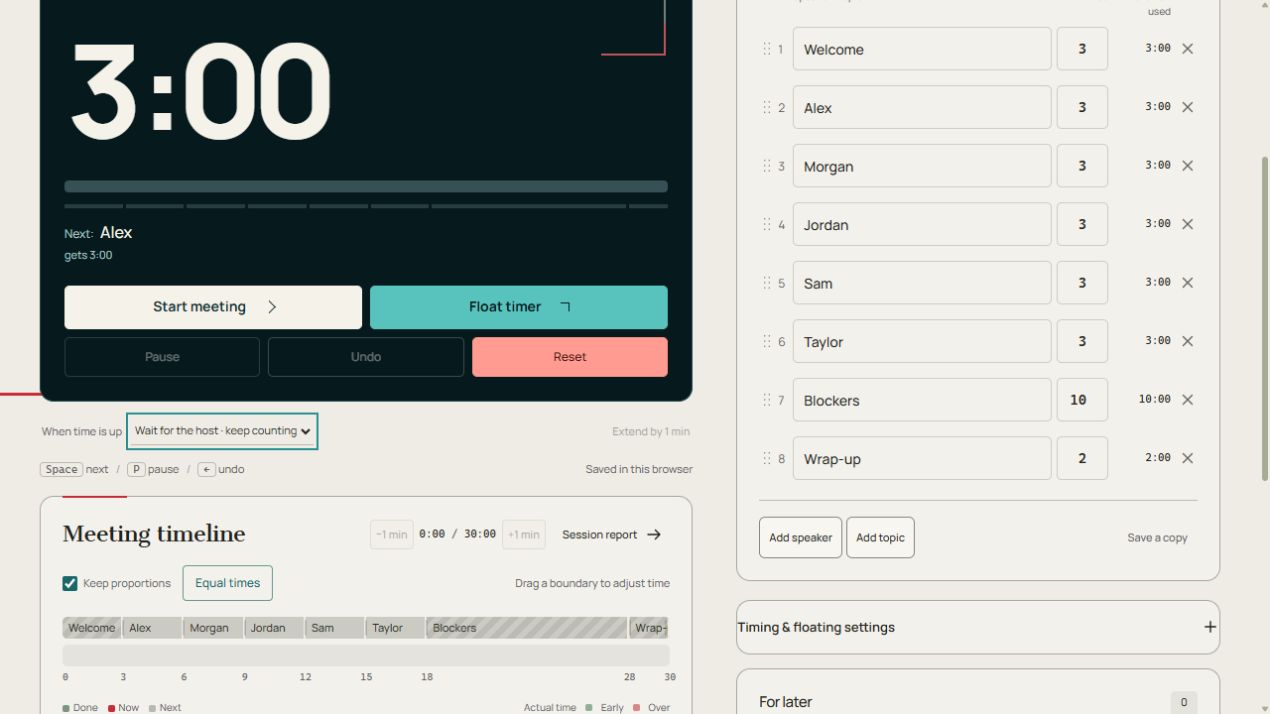
- Start / Next speaker — Begin the agenda or hand over to the next slot.
- Pause — Hold the meeting clock.
- Undo — Reverse the last handoff.
- Reset — Return to the planned beginning.
- Templates / New meeting
- Templates changes the current agenda. New meeting creates another meeting; Create opens a new template draft.
- Start meeting / Next speaker
- Begins the plan or hands over early, passing time toward later milestones.
- Pause / Resume / Undo
- Holds or continues meeting time, or reverses the most recent handoff.
- Reset
- Restarts the plan and clears this run; export the report first if needed.
- When time is up / Extend by 1 min
- Wait for the host keeps counting past zero. Automatic mode advances at a deadline. Extend by 1 min changes the current allowance.
- Float timer / Bring it back
- Opens a compact floating display where supported, or docks it again. Check whether your screen-share mode includes that window.
- Live Link / Stop sharing
- Anyone with the viewer link can see the published agenda and timer. Notes, owners and reports stay private. A separate control link can operate the timer; give it only to a co-host. Stop sharing revokes links; they expire after 24 hours.
- Fullscreen
- Enlarges the dark clock. Leave with the exit control or Escape where supported. Phone and browser support varies.
- Add speaker / Add topic / Save a copy
- Adds agenda rows or keeps a separate meeting plan. Row controls rename, reorder or remove items.
- Equal times / Keep proportions / Total, min
- Equal times redistributes unfinished speakers and topics. Keep proportions controls scaling when the total changes. Completed timing history stays fixed.
- Timeline boundaries / Clock handle / −1 min / +1 min
- Boundaries adjust agenda allocation. The clock handle and minute buttons correct the meeting clock, unlike Extend by 1 min which changes an allowance.
- Session report / For later / Add item / Copy summary
- Report compares planned and actual time and offers export. For later stores private notes with optional owners. Add item saves a note; Copy summary copies the completed-meeting summary.
- Set alarm / Alarm at / Test alarm
- Enable an extra bell, drag Alarm at to an elapsed-time position and test it. This bell has its own switch, separate from stage sounds and Stage transition tick. Keep the tab open.
- Stage transition tick
- Turns the short handoff click on or off separately from stage alarms.
Settings and saved setups
- Export meeting / Export all / Import / Privacy
- Download one meeting or a library backup, restore an exported file or read the privacy details.
- Outlined star / Make start timer
- The star adds this page to the favorites row on the main page and other timers. Press it again to remove it. Make start timer chooses the timer that opens from the home page.
- Sign in with Google / Sign out / My timers / Load synced settings
- The account control signs in or out. My timers lists saved custom timers. Load synced settings loads received account changes; pause a running timer first.
- Duplicate template / Delete template / Save template
- Duplicate keeps a separate template to edit. Delete template removes your saved template. Save template commits the edited name, slots and appearance.
- Create live link / Copy viewer link / Open live screen / Copy control link / Open control screen / Stop sharing & revoke links
- Create the session links, copy or open their viewer and controller versions, or revoke both. A control link grants clock controls; the viewer link is for the audience.
- Session report: Export CSV / Copy report / Print
- Download the planned-versus-actual report as CSV, copy its text or open the browser print dialog. Export the report before replacing the current run.
- Use template / Customize / Create / Save template / Cancel
- Use template applies an agenda. Customize or Edit opens its draft; choose a name, slots, icon and color, then Save template. Cancel leaves the saved template unchanged.
- Meeting keyboard shortcuts
- With focus outside a control: Space hands over, P pauses and Left arrow undoes the last switch.
Example: a 30-minute daily stand-up
Use Welcome 3 minutes, five teammate updates of 3 minutes each, Blockers 10 and Wrap-up 2. Total: 30 minutes. Start meeting, then Next speaker at each handoff. A minute saved by an early finish passes to the next slot. Equal times redistributes unfinished slots when you choose it.
Other ways to use it
- Sprint planning with separate decisions
- A retrospective with voting and actions
Practical advice
- Name agenda slots after the decision or topic, so everyone can see what the current time is for.
- Reserve a closing slot for decisions and next actions before dividing time between speakers.
- Pin slots that need a fixed allocation; use Equal times when unfinished speakers and topics should share the remaining time equally.
- Test the floating display in your actual screen-sharing mode. A floating window is not necessarily visible to the audience.
- Put tangents in For later and export a session report when you need a record of planned and actual time.
Saving, sound and browser limits
Settings, named templates, custom timers and favorites save in this browser. Sign in with Google at the top right to sync saved setups. If Load synced settings appears, pause before loading. Saved-setup sync does not synchronize live clocks across devices.
Keep this tab open and test sound on the device you will use. Phones and browsers can delay alarms in background tabs or while locked. Reload restores saved clocks paused; closing the page does not keep a live alarm running.